|
|
 The operation of
the Big-O-Trak is controlled by a program written for the OOPic in such a
way that it emulates most of the functionality of the original
Big Trak program written by Milton Bradley and described in the
BIG TRAK Operator's Manual (c) 1979 by Milton Bradley.
The operation of
the Big-O-Trak is controlled by a program written for the OOPic in such a
way that it emulates most of the functionality of the original
Big Trak program written by Milton Bradley and described in the
BIG TRAK Operator's Manual (c) 1979 by Milton Bradley.
The OOPic's program differs from the original in four ways.
The functions of the Milton Bradley Big Trak that are emulated are as followed:
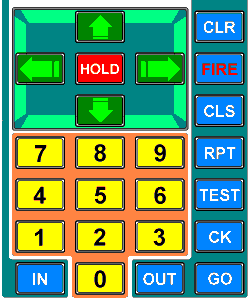
 Find the button that says CLR.
This is the Clear key.
Find the button that says CLR.
This is the Clear key.
Pressing this key will erase all instructions from the Big Trak's
memory.
When you erase the instructions with this key, the entire
computer memory becomes blank and you can program new
instructions for Big Trak to perform. When you want to change
programs, the  key is the first key to
press. If the key is not pressed,
then the previous program is retained in Big Trak's memory and
can be repeated by pressing the Go key. If more instructions are
added, Big Trak will repeat the first program then perform the
new instructions when you press the Go key.
key is the first key to
press. If the key is not pressed,
then the previous program is retained in Big Trak's memory and
can be repeated by pressing the Go key. If more instructions are
added, Big Trak will repeat the first program then perform the
new instructions when you press the Go key.
 Find the button that says GO.
This is the Go key.
Find the button that says GO.
This is the Go key.
It key tells Big Trak to start to do its program.
When you use this key, you start the action as soon as you
press it. In other words, turn Big Trak "ON", program
instructions, press the  key and Big Trak will
immediately perform the instructions.
key and Big Trak will
immediately perform the instructions.
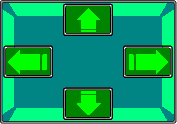 Find the arrows.
These are the Forward, Backward, Right & Left keys.
Find the arrows.
These are the Forward, Backward, Right & Left keys.
The top arrow tells Big Trak to move forward, the bottom arrow
moves Big Trak backwards and the two side arrows tell Big Trak to
turn right or left. Right now we will talk about the Forward and
Backwards. We will discuss turns later.
When you press either the  key or
the
key or
the  key, you program the Big Trak to move
either forward from its position or to back up from it. A
movement like this also needs to be programmed for distance,
therefore, you need a second instruction. The second instruction
tells Big Trak how far to go.
key, you program the Big Trak to move
either forward from its position or to back up from it. A
movement like this also needs to be programmed for distance,
therefore, you need a second instruction. The second instruction
tells Big Trak how far to go.
To tell Big Trak how far to go, you will need to use the number keys to enter any number from 1 to 99. (each number will move Big Trak one length of itself.) The higher the number the longer the distance.
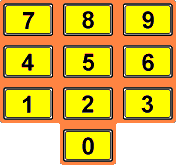 Find the numbers.
These are the 0, 1, 2, 3, 4, 5, 6, 7, 8 & 9 keys.
Find the numbers.
These are the 0, 1, 2, 3, 4, 5, 6, 7, 8 & 9 keys.
The number keys are used in combination with the other
instructions.
When you use these keys, you are telling the Big Trak how far to move, or how many times to something, or how long to wait.
| Try this: Press the key, then the key, then the  key, then the key. key, then the key.Watch Big Trak move forward its own length, (roughly 13 inches.) The same system holds true to move Big Trak backwards. |
When using the number keys, either one or two number keys can be pressed to enter a number
| Try this: Press the key, then the key, then the key, then the  key,
then the key. key,
then the key. Watch Big Trak move forward twelve times its own length. Be sure that you have plenty of room for the Big Trak to do this. |
When programming the Big Trak, more than one instruction can be entered.
| Try this: Press the key, then the key, then the key, then the
key, then the key, then the key. Watch Big Trak move forward twice its own length, and then backwards its own length. |
After you have seen Big Trak perform this these programs,
press the key.
When you press either the  key or the
  key, you program the Big Trak to turn to that side.
The turns also need to be programmed for distance, therefore, you
need a second instruction to tell the Big Trak how far to turn.
key, you program the Big Trak to turn to that side.
The turns also need to be programmed for distance, therefore, you
need a second instruction to tell the Big Trak how far to turn.
To tell Big Trak how far to turn, you will have to use the number keys to enter a number from 1 to 99. (each number will move Big Trak 6 degrees.) Example 15 will give you a full 90 degree turn.
| Try this: Press the key, then the key, then the key, then the
key, then the key, then the  key, then the
key , then the key. key, then the
key , then the key. Watch Big Trak move 1 "length" forward, make a right hand turn, then move forward again. |
| Try it this way: Press the key, then the key, then the key, then the key,
then the key, then the key, then the
key, then the key. Watch Big Trak move 1 "length" forward, make a left hand turn, then move forward again. |
 Find the button that says FIRE.
This is the Fire-Key.
Find the button that says FIRE.
This is the Fire-Key.
This button tells Big Trak to fire its "photon" beam.
Program this into Big Trak by pressing the  key followed by the number of times to fire.
| Try this: Press the key, then the key, then the  key, then the key. key, then the key. Watch Big Trak fire the "photon" beam 9 times. |
| Try this: Press the key, then the key, then the key, then the
key, then the key, then the key, then the
key, then the key, then the key, then the  key, then the key. key, then the key. Watch Big Trak move 1 "length" forward, make a right hand turn, then move forward again and fire 3 times. |
 Find the button that
says HOLD. This is the Hold-Key
Find the button that
says HOLD. This is the Hold-Key
This tells the Big Trak to wait for a period of time before it
does its next instruction.
The  key is followed by a second command that
sets a period of time to wait. With Big Trak, each unit of time
is a tenth of a second.
key is followed by a second command that
sets a period of time to wait. With Big Trak, each unit of time
is a tenth of a second.
If you want Big Trak to wait 1/2 of a second, you press the key, then the key.
If you want Big Trak to wait 1 second, you press the key, then the key and then the  key.
key.
If you want Big Trak to wait 2 seconds, you press the key, then the key and then the key.
| Try this: Press the key, then the key, then the key, then the key,
then the key, then the key, then the key, then the key,
then the key, then the key, then the key. Watch Big Trak move 1 "length" forward, fire 3 times, wait 2 seconds and then fire once more. |
 Find the button that says RPT.
This is the Repeat-Key
Find the button that says RPT.
This is the Repeat-Key
This tells the Big Trak to repeat instructions that you have
already put into the computer's memory without having to do them
all over again.
When you use the  key, you have to tell
Big Trak how many previous instructions to repeat. It is
important to know that Big Trak begins with the last instruction,
counts backward the number of steps that you have told it to
repeat, and then starts forward through these steps, adding them
to the existing program.
key, you have to tell
Big Trak how many previous instructions to repeat. It is
important to know that Big Trak begins with the last instruction,
counts backward the number of steps that you have told it to
repeat, and then starts forward through these steps, adding them
to the existing program.
As an example, you want Big Trak to travel in a square. You
would press:
the key, then the key, then the key, then the key, then the key, then
the key, then the key, then the key, then the key, then the key, then
the key, then the key, then the key, then the key, then the key, then
the key, then the key, then the key, then the key, then the key.
By using the key, you can make the
same square in fewer steps by pressing:
the key, then the key, then the key, then the key, then the key, then
the key, then the key, then the key, then the key, then the key, then
the key, then the  key.
key.
Note: the key can only be used
one time during your whole program.
 Find the button that says CLS.
This is the Clear-Key
Find the button that says CLS.
This is the Clear-Key
This key erases the last instruction in Bit Trak's memory.
Once you press the  key, you can program a
new instruction to take the place of the one that you erased.
Repeated pressing of the key will remove the
last instruction each time the key is pressed. In fact, you could
remove an entire program from memory with this key.
key, you can program a
new instruction to take the place of the one that you erased.
Repeated pressing of the key will remove the
last instruction each time the key is pressed. In fact, you could
remove an entire program from memory with this key.
When pressing the key, it is not possible
to skip instructions. The key always removes the
last instruction in memory.
 Find the button that says CK.
This is the Check-Key
Find the button that says CK.
This is the Check-Key
This key is used to test the last instruction in memory.
You use the  key to find out if your last instruction
tells Big Trak to do exactly what you want it to do.
key to find out if your last instruction
tells Big Trak to do exactly what you want it to do.
As an example, you want Big Trak to make a full right hand
turn. You have press the key, then the key, then the key, but because floor
surfaces will vary from house to house, and room to room,
"15" may not be the correct amount to make the turn. To
find out, press the key. By watching Big Track, you can see
if "15" was good. If it was, proceed to your next
instruction. If "15" was not enough, use the key to erase that instruction and try another.
Legal Notice: Hasbro accquired Milton Bradley and its subsidiararies in 1984 and other than the fact that this project uses a Milton Bradley Big Trak in its construction, this project is in no way affiliated or endorsed by Hasbro and/or Milton Bradley. Big Trak is a trade mark of its respective comapnies and all rights are acknowledged.